Type with your PC keyboard
Reply to messages, fill in fields and write in Android apps with a physical keyboard. Use your mouse to navigate and select what you need.
Desktop Mode • Nubloid
Access your Android apps on Windows with your computer keyboard and mouse. More comfort for tasks that start on your phone and continue at your desk.
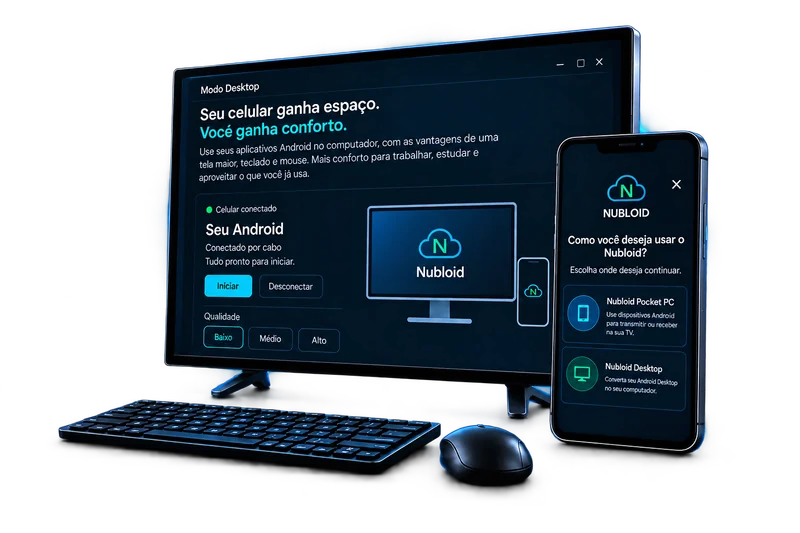
You are already at your computer, but you need an app on your phone. With Desktop Mode, use that app from your Windows screen. It keeps running on Android while you interact with the keyboard and mouse already on your desk.
Reply to messages, fill in fields and write in Android apps with a physical keyboard. Use your mouse to navigate and select what you need.
Check what is on your phone while working on Windows. The session is on your computer screen, within reach of the same controls.
Nubloid walks you through preparing your Android and connecting it to your PC. Then start the session and follow its status in the Windows app.
In practice
While working on Windows, open the Android app you need to check and use your keyboard to reply. Keep up with your phone tasks in the same place you are already working.
Before you start
Step by step