Directly between your devices
When the devices can connect over your local network, files go straight from one to the other. On that route, they do not need to be uploaded to a cloud first.
File Transfer • Nubloid
Send documents, photos and videos between Android and Windows. Nubloid prioritizes a direct connection and offers options when that connection is not available.
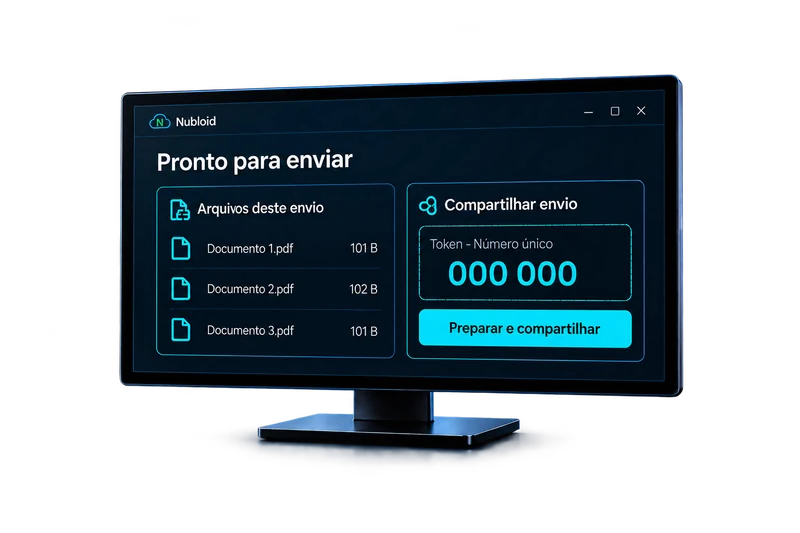
The photos are on your phone. A document needs to reach your computer or someone else. Choose what to send and follow its progress. Nubloid gives priority to a direct connection between devices, with optional integrations when you need another route.
When the devices can connect over your local network, files go straight from one to the other. On that route, they do not need to be uploaded to a cloud first.
Share an invitation with a summary of file names and sizes. The recipient knows what to expect and opens the invitation in Nubloid to continue.
The temporary code helps limit access to the transfer. Share the code or invitation only with the intended recipient, and end the transfer in the app when needed.
If your devices cannot connect directly, the available integrations offer another route for your files. You choose a service you trust and authorize its use for the transfer.
See transfer progress and results in the app. Follow sending or receiving, and cancel the operation when you need to.
After receiving your files, find them in Nubloid Files to organize, open or share again.
In practice
Select the images on Android that you need on Windows. When both devices are reachable on the same network, the files can go directly between them. To send files to someone else, share the invitation through your preferred app.
Before you start
Step by step